
Add a timer or sensor
You can add another tap timer or a soil moisture sensor yourself, from the app, in a couple of minutes. You don’t need any other app. If you’d rather not, an installer can do it for you.
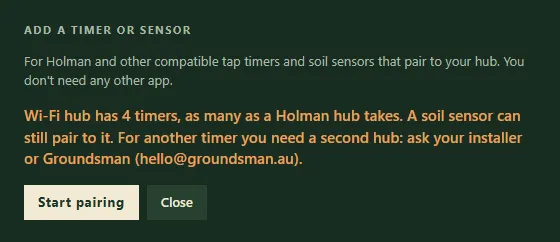
Add a timer or sensor, ready to start pairing.
Before you start
Section titled “Before you start”- Your controller is connected to the Groundsman cloud. Adding a device goes through it, so the Add a timer or sensor button only shows when it’s connected. See Groundsman cloud account.
- The new device is a Holman or other Tuya-based timer or soil sensor that pairs to your timer hub.
- Your timer hub has room. A Holman hub takes 4 timers. A soil sensor can still pair to a full hub.
- Batteries for the new device.
Add it
Section titled “Add it”- Open the Zones tab and press Add a timer or sensor, next to Timers.
- If you have more than one timer hub, pick the one with room. Each shows how many timers it has.
- Press Start pairing. Your hub listens for new devices for 2 minutes.
- Put batteries in the new timer or sensor and keep it near the hub.
- Hold its pairing button until the light flashes. Its manual says which button.
- Leave the window open. The new device appears by itself, then press Done.
If nothing turns up, Groundsman says so. Check the batteries and the pairing light, then press Try again.
Set it up
Section titled “Set it up”A new timer: each outlet becomes a zone under Timers on the Zones tab.
- Rename it after the area it waters, such as “Side bed”.
- Press Answer setup questions on it and say what it waters, how it’s watered and which tap it’s on. See zone settings.
- Draw its shape on the map. See draw zones.
- Add it to a watering program. See set up a watering schedule.
- Run it once from Test timers on Home to check the right sprinklers come on.
A new soil sensor: it shows under Soil sensors on the Zones tab. Give it a name, then pick it in the zone it sits in and set the moisture level to skip watering at. See soil sensors.
Have an installer do it
Section titled “Have an installer do it”An installer can fit the timer, pair it and set up the zone in one visit. That’s the easier way if:
- the new tap is far from your timer hub;
- your timer hub is full and you need a second one;
- your controller isn’t connected to the Groundsman cloud.
If the button isn’t there
Section titled “If the button isn’t there”- Check the app’s footer says “Synced to Groundsman cloud”. If it says “Running locally”, the controller isn’t connected to the cloud.
- If you set it up yourself and want to connect it, email hello@groundsman.au.
- If it says adding devices isn’t set up yet, ask your installer or Groundsman.
Related
Section titled “Related”Groundsman · smart watering and lawn care for Adelaide homes ·hello@groundsman.au