
Plants on the map
Put your plants on the map and Groundsman adds their care jobs: pruning, thinning, suckers, feeding and checks, timed for Adelaide’s seasons. It also knows which zone waters each one.
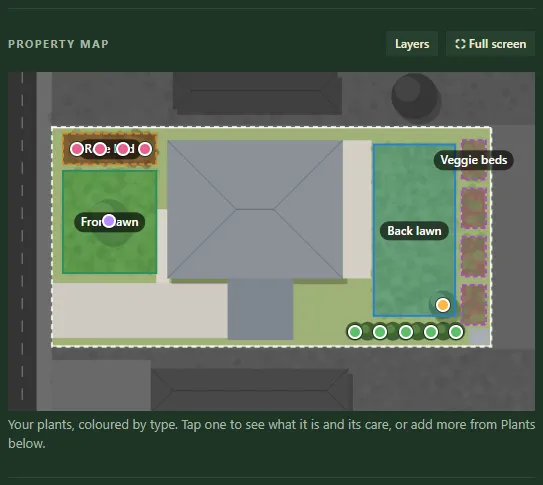
Plants on the Garden tab's map: roses, a crepe myrtle, a hedge and a lemon tree.
Before you start
Section titled “Before you start”Plants go on the map on the Garden tab. The map photo itself is added on the Zones tab, so do that first. See map photo and boundary.
Place a plant
Section titled “Place a plant”- On the Garden tab, find the Plants card under the map. Click its header to open it if it’s folded.
- Pick a plant from the list, grouped as roses, hedges, fruit and citrus, natives, ornamental trees, and shrubs and perennials. Its photo and care jobs show below.
- Press Place on the map.
- Click the map wherever there’s one. Use one dot per plant, or one dot for a stretch of hedge.
- Press Done.
To browse instead, press Pick from pictures instead, then + Add under the plant you want.
Add its care jobs
Section titled “Add its care jobs”Under In your garden, each kind of plant shows how many you’ve placed, which zones they’re in, and whether it has care jobs yet.
- Press Add care jobs next to a plant.
- Its jobs join your list on the Garden tab as yearly jobs.
- When a job is due, the Today checklist rings the plants on the map so you know which ones.
After adding or removing plants, press Update care jobs at the top of the card (or Refresh jobs for one plant).
Change or remove a plant
Section titled “Change or remove a plant”- Click its dot on the map on Garden.
- Pick another plant from the list to change it, or press Remove.
- Press Done.
Plants show on Garden’s map, coloured by type. The map on the Zones tab leaves them off, so it’s clear for zones, sprinkler heads and drip tube.
Related
Section titled “Related”Groundsman · smart watering and lawn care for Adelaide homes ·hello@groundsman.au