
Draw zones on the map
Each zone can be drawn on the map as the area it waters. The shapes light up on Home while a zone runs, show where jobs happen, and, once the map has a scale, work out each zone’s area for you.
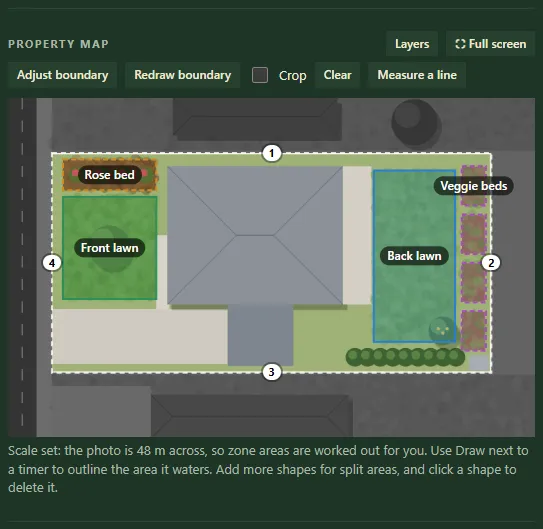
Zones drawn on the property map.
Before you start
Section titled “Before you start”Add a map photo first. Set the scale too if you want areas in m². See map photo and boundary and map scale.
Draw a zone
Section titled “Draw a zone”- On the Zones tab, find the zone under Timers. Click it to open its settings if it’s folded.
- Press Draw on map.
- Click around the edge of the area it waters, corner by corner.
- Use Undo point to take back the last click, or Cancel to stop.
- Press Finish shape (it needs at least three points).
The zone’s area appears in its settings as “m² (from map)”.
Add more shapes
Section titled “Add more shapes”A zone can have as many shapes as you like, for example a front lawn split by a path. Press Add shape and draw the next one. Their areas add together.
Delete a shape
Section titled “Delete a shape”- Click a shape on the map. Its zone and area show under the map.
- Press Delete this shape, or Done to leave it.
- To remove all of a zone’s shapes, press Clear shape (or Clear 2 shapes) in its settings.
- Press ⛶ Full screen for more room while you draw.
- Change a zone’s colour with the colour square next to its name.
- Use Layers to hide names or the boundary while you work.
- If you’ve typed in a zone’s area, that takes priority over the drawn one. Groundsman offers to switch when the scale changes.
Related
Section titled “Related”Groundsman · smart watering and lawn care for Adelaide homes ·hello@groundsman.au