
Garden tab
The Garden tab holds your plants and plans the garden work that isn’t watering: mowing, feeding, spraying, pruning, weeding and the rest. Groundsman times each job for Adelaide’s seasons, your grass and your lawn dates, and puts the ones due today on the Today checklist on Home.
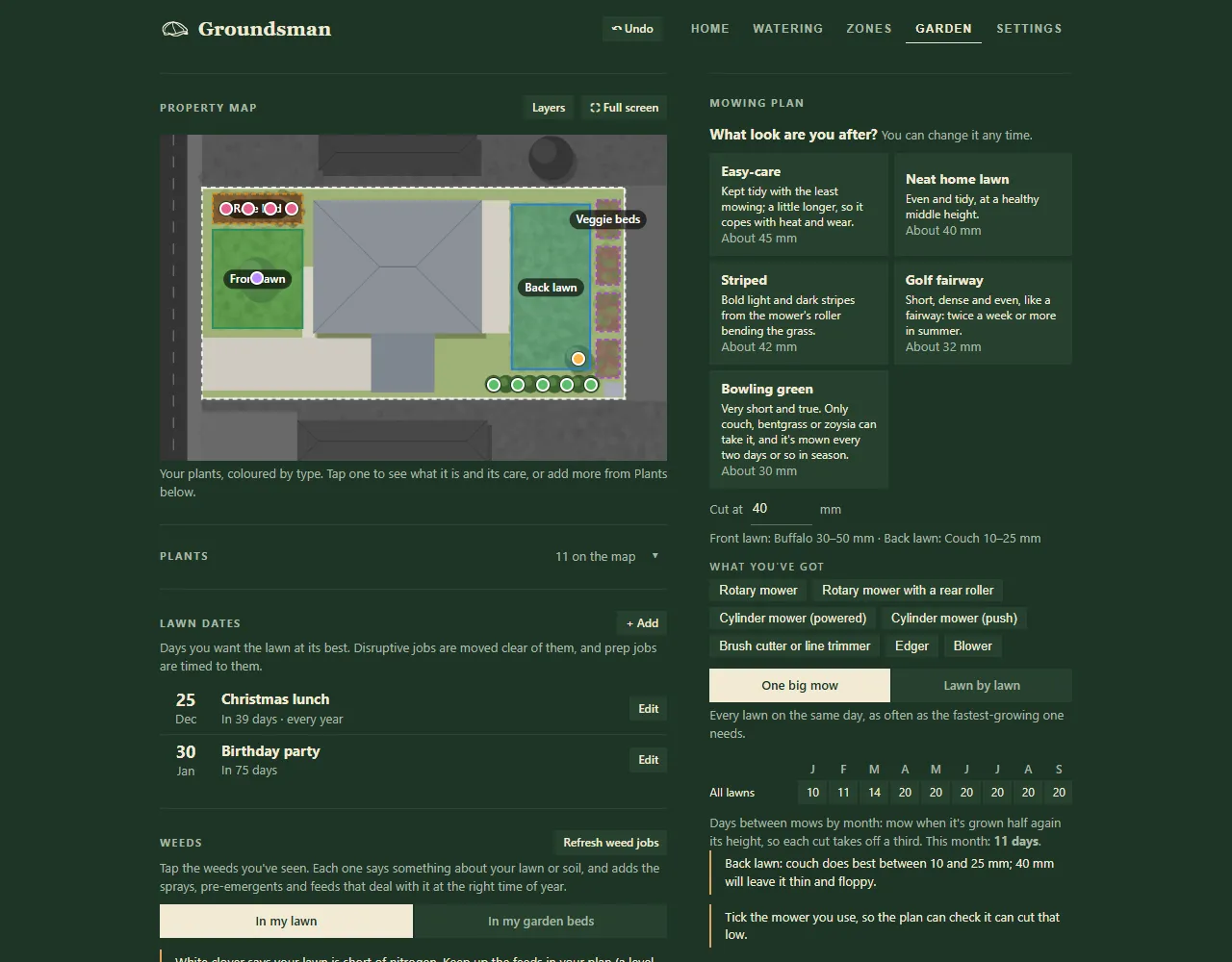
The Garden tab for an example garden.
What’s on it
Section titled “What’s on it”The left column:
- The map: your property map, showing the plants you’ve placed. It’s the same map as on Zones, where it’s for zones, sprinkler heads and drip tube.
- Plants: pick a plant from the list or Pick from pictures instead, press Place on the map, then Add care jobs to turn its pruning, feeding and checks into jobs. See plants on the map.
- Lawn dates: days you want the lawn looking its best. See lawn dates.
- Weeds: tap the weeds you’ve seen and Groundsman adds the jobs that deal with them. See weeds.
- Lawn & garden jobs: every job, grouped into Overdue, This week and Next 4 weeks. Tick Show later to see the rest of the year. Jobs you log when you do them sit under As needed.
The right column:
- Mowing plan: your lawn look, cutting height and mower. See mowing plan.
- My products: what you have on hand and when it runs out. See my products.
- Plan cost: what your plan costs a year, with a slider from Ideal to Budget. See plan cost and budget.
- Supplier: plans, products and prices come from your preferred supplier. LawnHub is the only one for now.
- Guided plans: lawn-care pack calendars that become dated jobs. See guided lawn plans.
- Products: search the supplier’s catalogue for label rates, and press Add job to make a job from a product.
- Add a job: one button for each kind of job. See garden and lawn jobs.
- Season calendar: which months each job is in season. Open full calendar opens your garden year. See garden calendar.
- Recently done: the last 10 jobs you marked done.
Set it up
Section titled “Set it up”- On Zones, under Timers, answer each lawn zone’s setup questions (Answer setup questions, or Edit answers once done). The grass and the lawn’s area are what Groundsman uses for timing and quantities. See zone settings.
- On Garden, add any Lawn dates coming up.
- Pick a plan under Guided plans, or add jobs from Add a job.
- Set up the Mowing plan and press Put it on my jobs.
- Press What do I already have? under My products so Groundsman knows what’s in the shed.
- Place your roses, hedges, trees and shrubs on the map from the Plants card, if you want their care timed too.
Using the job list
Section titled “Using the job list”Each job shows when it’s due, how often it repeats, any after-care (such as “water in 6 mm”) and which zones it covers. Its buttons:
- Done marks it done (Log for an as-needed job). See after-care.
- +2d pushes it back two days.
- Edit opens the job.
- Push to next week shows what the move would mean first: the season, lawn dates and how busy that week is.
- How to mix and apply appears on jobs with products. See how to mix and apply.
Recalculate plan catches up overdue jobs from today and re-times every job from its repeat, season and lawn dates. It tells you what moved, with an Undo button.
Related
Section titled “Related”Groundsman · smart watering and lawn care for Adelaide homes ·hello@groundsman.au