
Garden calendar
Groundsman keeps a calendar of every lawn and garden job for the next 12 months. A small version sits on the Garden tab; the full one, Your garden year, lets you change it.
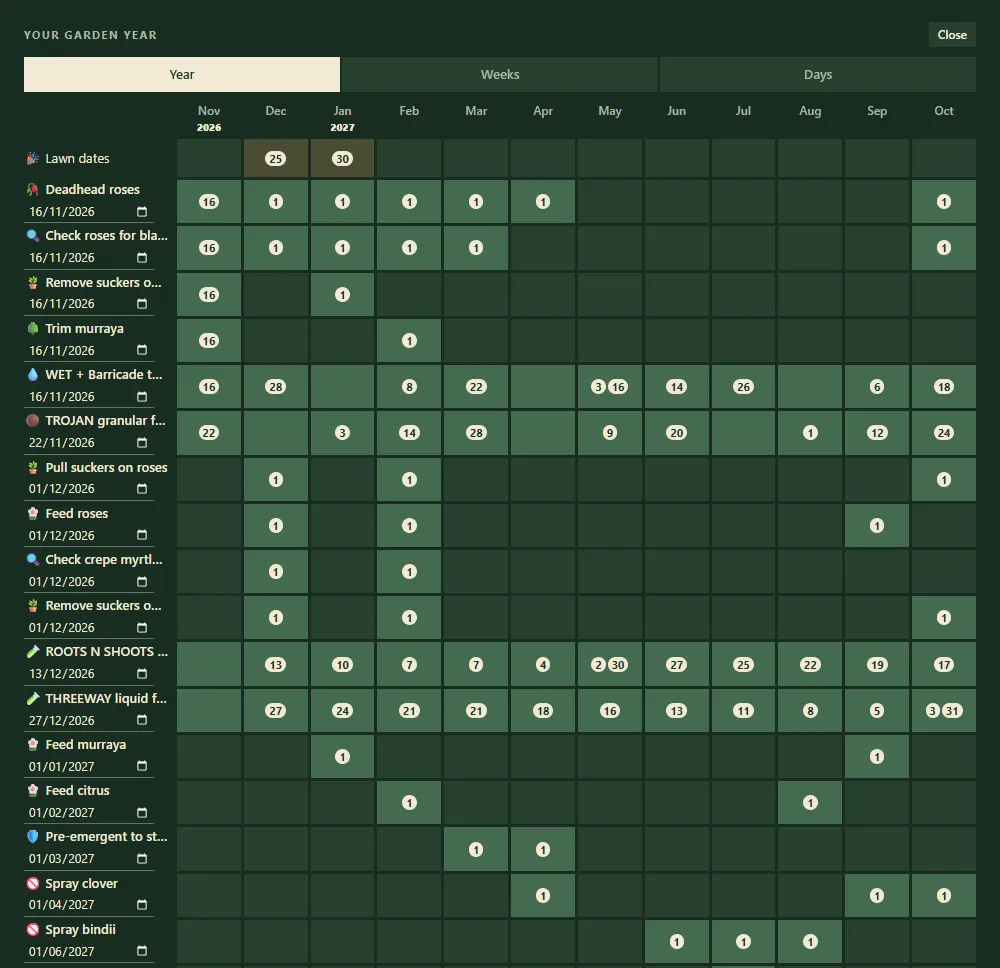
Your garden year, with each job's days by month.
The Season calendar card
Section titled “The Season calendar card”On Garden, the Season calendar card shows each job against the months:
- shaded months are in season;
- a dot marks when it’s next due;
- the outline is this month.
Press Open full calendar (or anywhere on the card) for the full view.
Your garden year
Section titled “Your garden year”It has three views. Switch with Year, Weeks and Days at the top.
Each job is a row across the next 12 months, with the days it falls on. Your lawn dates have their own row.
- Click a month to switch the job in or out of season. Switched-off months go blank and its dates move.
- Change a job’s next due date in the date box beside its name.
- Click a job’s name to edit it. See garden and lawn jobs.
The next 12 weeks, with dots showing how busy each week is. Letters show the days each job falls on. Click a week to open it.
One week as seven columns.
- Tap a job to pick it up.
- Tap the day to move it to. You can also drag it.
- Use ‹ Week before and Week after › to move between weeks.
Only a job’s next date can be moved. The ones after it follow on from the new date.
Sync with your calendar
Section titled “Sync with your calendar”- With the Groundsman cloud: a private link appears with Copy link, to subscribe from Google Calendar, Apple Calendar or Outlook. It stays up to date by itself. See calendar subscription.
- Without the cloud: press Download .ics (import once). Your calendar app imports the jobs as they are today, and won’t pick up later changes.
Recalculate plan is here too. It catches up overdue jobs from today and re-times the rest. Every change in the calendar can be undone with Undo.
Related
Section titled “Related”Groundsman · smart watering and lawn care for Adelaide homes ·hello@groundsman.au